The numbers a front desk could never give you
How many visits you had, how long people usually waited, how many were served on time, what they thought of it, and what to improve first — for one location, one line, or all of them.
Free for 100 visits a month · no card needed
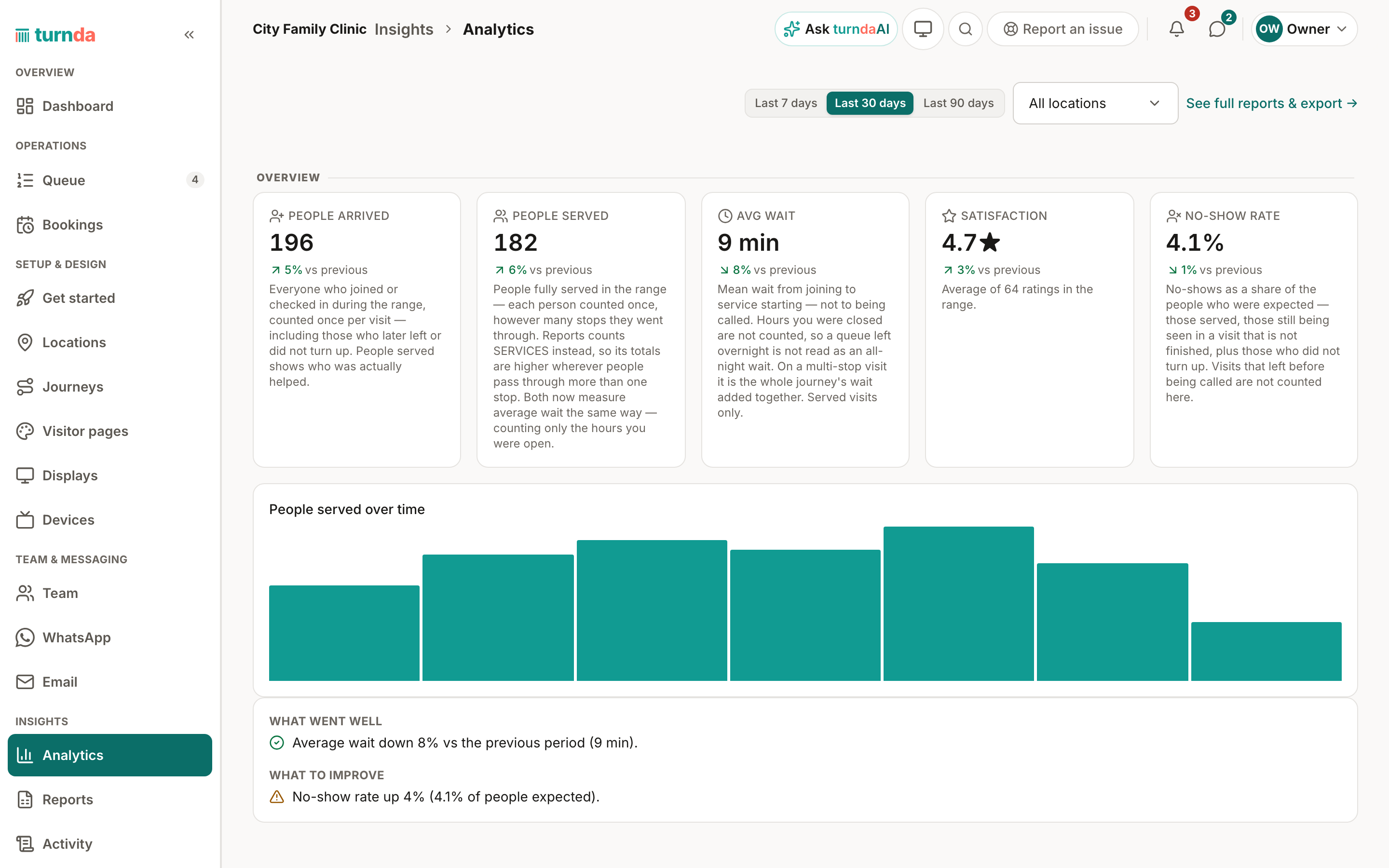
Analytics
Analytics opens on one row of eight numbers — visits, called, visits served, served on time, usual wait, left before served, did not turn up and satisfaction — each with a line for the last 12 weeks, so a figure is never just a figure. Under it, five tabs answer the harder questions: who came and how they rated it, how the work is shared across your team, which line or stop holds people up, which location is doing better, and whether you had enough staff on for the people who arrived. Pick last 7, 30 or 90 days, your own dates or this billing month, and one location, one line or all of them.
Step by step
Pick a range and a location
Last 7, 30 or 90 days, your own dates, or this billing month; all locations, one, or one line. Everything on the page re-answers for that window.
Read the eight headline numbers
Visits, called, visits served, served on time, usual wait, left before served, did not turn up and satisfaction — each with a 12-week line.
Let it tell you what to fix first
“What to improve” names the things worth fixing, the one affecting most people first, and most come with a button that makes the change. Not now hides one for 30 days.
Then go one level down
Tabs for Visitors, Staff, Performance and Roster: who came, how it was rated, how the team did, and where the time goes.
It says what to do about it, not just what happened
Most dashboards stop at a chart. This one names the finding — for example, “82% of customers left before being served, typically after about seven minutes”, shown here as an example, not a measurement of any real business — and puts the abandonment curve next to it so you can read off the wait your customers will actually tolerate, and set your max-wait to it. The same section puts arrivals against how many people were signed in to a counter, hour by hour: where the queue is long and nobody is on, that is where another pair of hands pays for itself.
Everything else on this page
Location against location
Visits, usual wait, served on time and how many left, for each location side by side — the worst and best ten, with a search for the rest.
How each person is doing
Services completed, average service time, the rating customers gave those services, and a fair share of the volume. Not shown to staff.
Hours and utilisation
Time signed in to a counter against time actually spent serving — and how many shifts ended by something other than signing out.
When you are busiest
A heat map by hour and weekday, with the peak named in a sentence, so you can roster against it.
A satisfaction score that is real
The star figure is the average of the ratings your customers actually left in that range, and the page says how many that is.
Your own numbers if you are on the floor
Anyone serving has a personal view of what they got through, separate from the owner’s dashboard.
The rest of the product
Reports & exports
Waiting times, visits served, no-shows and walkouts, peak times, staff and counter performance, hours and utilisation, handovers — and a forecast of tomorrow. Each one downloads as CSV, Excel or PDF.
Read moreRatings and reviews
After being served, a customer who left an email can give one to five stars and add a comment — and, if you switch it on, get an email asking them for a Google review.
Read moreTeam, roles & permissions
Three roles, eleven switches for what a manager may do, a PIN to sign in at the counter, and a full record of who did what — kept for a year, with customers by ticket number rather than by name.
Read moreCommon questions
Can my staff see how everyone is performing?
No. The per-person tables are marked “not shown to staff” and live on the owner and manager dashboard. Someone who serves sees their own numbers and nobody else’s. Whether a manager sees analytics at all is one of the switches you control.
Do I have to set anything up to get this?
No. It is built from the queue you are already running — every join, call, serve and no-show is already recorded, so the dashboard fills itself in from day one.
Why does Analytics show a smaller total than Reports?
They count different things and both say so on the page. Analytics counts PEOPLE — one person, however many desks their visit passed through. Reports counts SERVICES, one per completed stop. On a multi-stop journey the reports total is higher, and neither is wrong.
Can I get the underlying rows out?
Yes — every table has a Download button (CSV), and nine detailed reports download as CSV, Excel or PDF. Counts under 5 are written as “under 5”, and no file carries a visitor's name or contact. A weekly and a monthly summary can also arrive by email.